


Start with the Right Chair Your chair is the foundation of your setup.

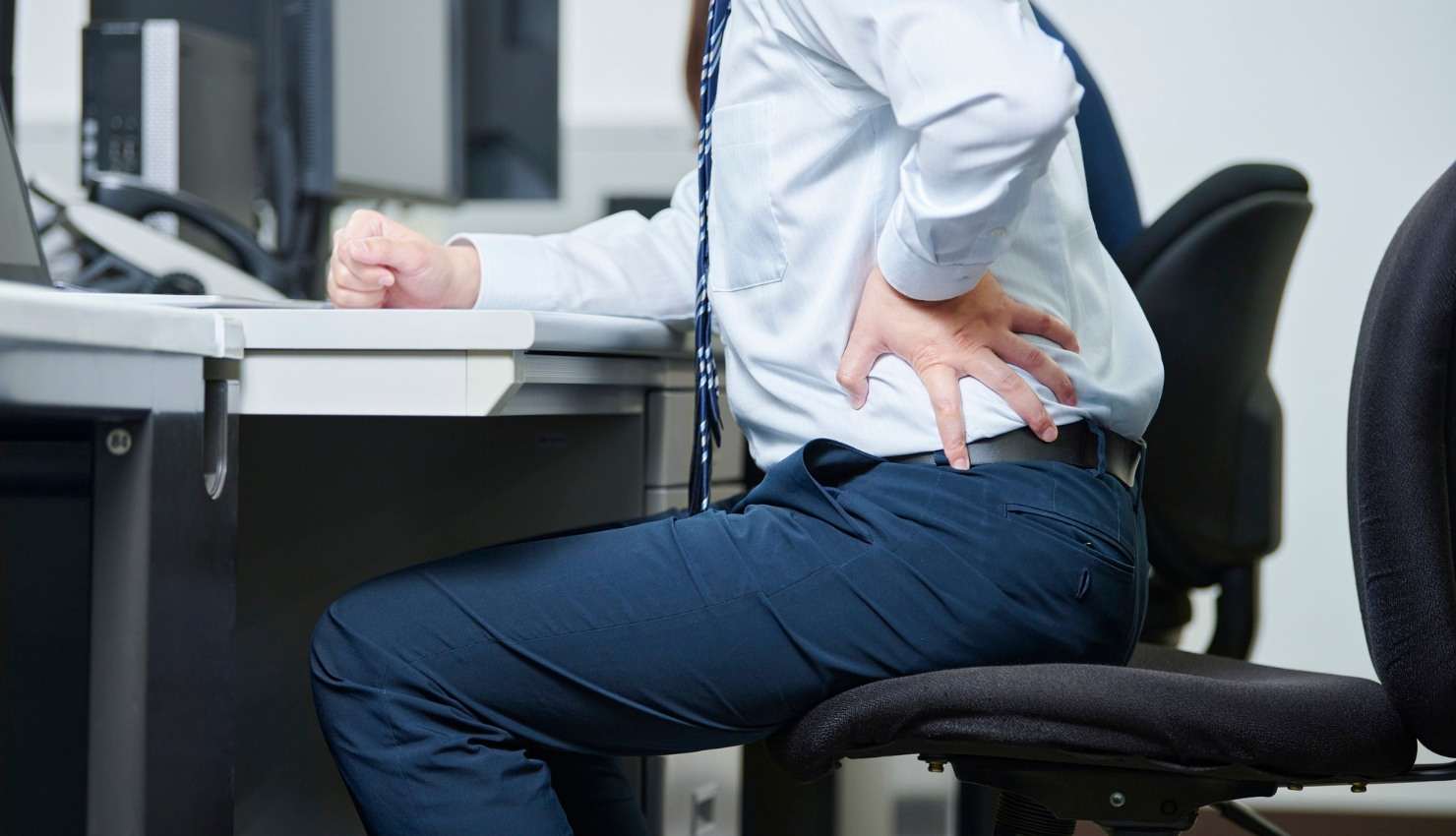
Start with the Right Chair
Your chair is the foundation of your setup.
Look for:
Adjustable seat height (thighs parallel to the floor)
Lumbar support for your lower back (or use a cushion)
Armrests that support your elbows at 90100°
Stable base with five casters
Physio Tip: Sit with your hips as far back in the seat as possible and feet flat on the ground.
?? 2. Optimize Monitor Position
Prevent neck and eye strain by placing your screen in the right position.
Guidelines:
Top of monitor at or just below eye level
2030 inches (about arms length) away from your eyes
Directly in front of you (not angled to the side)
Bonus: Use a monitor riser or stack books to achieve proper height.
?? 3. Keyboard and Mouse Placement
Avoid shoulder and wrist fatigue.
Keyboard:
Keep it flat or slightly tilted down
Elbows close to your sides, bent at about 90°
Wrists in a neutral, flat position not bent up or down
Mouse:
Place it next to the keyboard
Use your whole arm to move it, not just your wrist
Physio Tip: Consider using a wrist rest to reduce pressure on the median nerve (especially for carpal tunnel prevention).
?? 4. Support Your Legs and Feet
Your lower body should feel grounded and relaxed.
Ensure:
Feet are flat on the floor (or on a footrest if needed)
Knees at or just below hip level
Avoid crossing legs or sitting on your foot this throws off pelvic alignment
?? 5. Maintain Good Sitting Posture
Use visual and physical reminders throughout the day.
Checklist:
Ears over shoulders, shoulders over hips
Neutral spine (avoid slouching or over-arching)
Relax shoulders dont shrug
Use posture-cue apps or sticky notes on your screen
? 6. Incorporate Movement and Breaks
Even the best ergonomic setup needs to be combined with movement.
Use:
The 20-8-2 Rule (sit 20 min, stand 8, move 2)
Short stretches every hour (neck rolls, spinal twists, shoulder squeezes)
Sit-stand desk or a standing mat for variety
Physio Reminder: Motion keeps your muscles and joints hydrated and healthy.
?? 7. Control Lighting and Screen Glare
Reduce eye fatigue and headaches.
Best Practices:
Use natural light when possible, but avoid direct glare on the screen
Adjust screen brightness and contrast
Use blue light filters or glasses to reduce digital eye strain
?? Bonus Ergonomic Accessories
Laptop stand or docking station for screen height
Anti-fatigue mat for standing desks
Document holder to avoid neck twisting
Cable organizers to keep space tidy and stress-free