


Poor desk ergonomics can lead to:

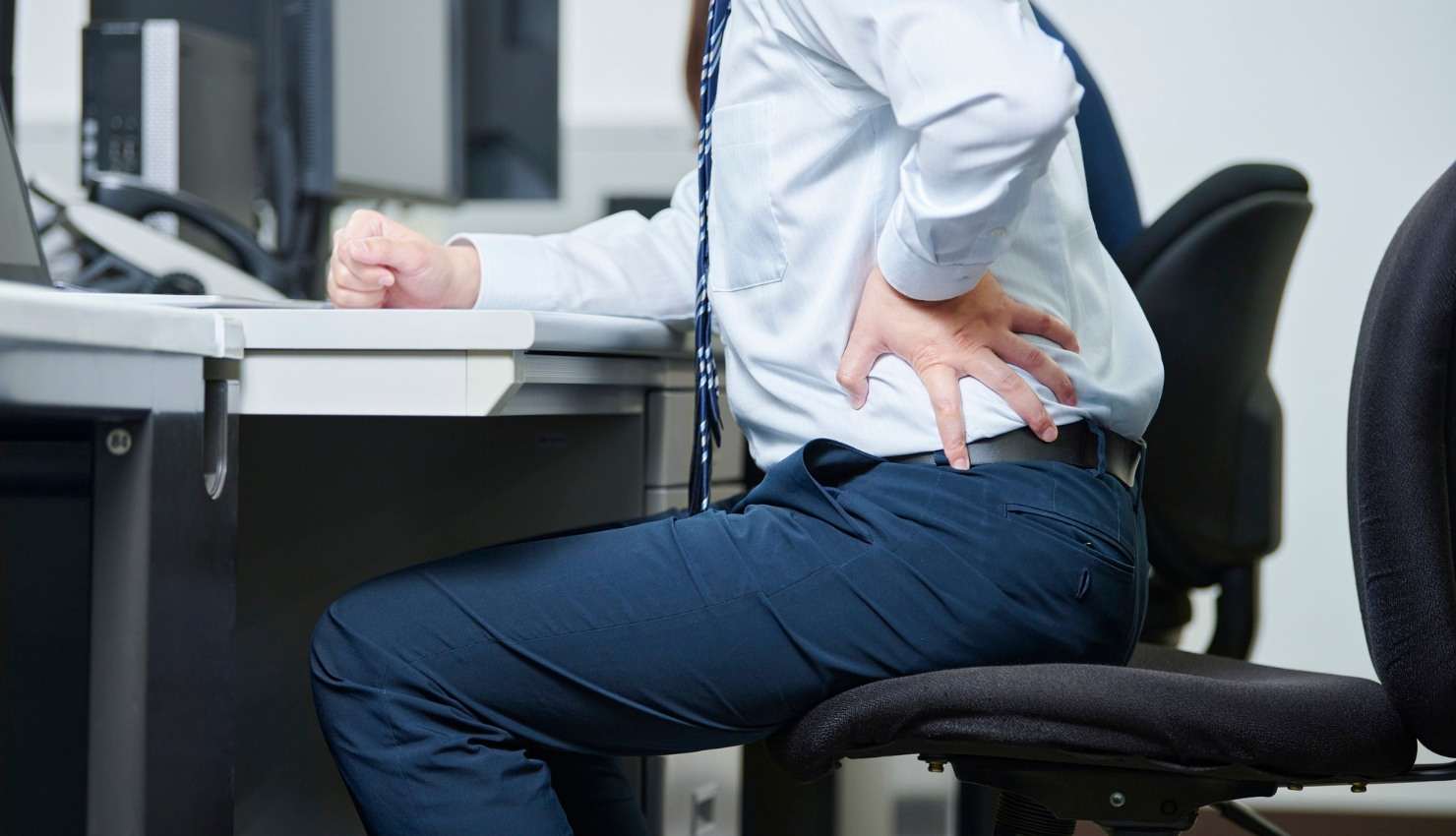
Poor desk ergonomics can lead to:
Neck and back pain
Eye strain
Wrist and shoulder tension
Fatigue and poor focus
A good ergonomic setup aligns your body naturally to prevent these issues, especially during long workdays.
? Ergonomic Desk Setup Checklist
1. Chair Setup: Support Your Spine
?? Choose the right chair:
Adjustable height, armrests, lumbar support
Your feet should be flat on the floor (or on a footrest)
Hips and knees at 90100° angles
? Bonus Tip: Use a small pillow or lumbar roll to support your lower back if your chair doesnt provide it.
2. Desk Height: Elbows at Ease
??? Ideal desk height lets you:
Rest forearms parallel to the ground
Keep elbows at about 90°, close to your body
Avoid shrugging or slouching
? If the desk is too high, raise your chair and add a footrest.
3. Monitor Position: Eye-Level Focus
?? Keep your screen:
An arms length away
Top third of the screen at eye level
Tilted slightly up (~1020°) to reduce neck strain
? Avoid looking down at a laptop screen for long periods. Use a laptop stand + external keyboard/mouse.
4. Keyboard & Mouse Placement: Neutral Wrist Position
?? Keep them:
At elbow height
Close enough so you dont reach forward
Wrists in a straight, relaxed position (use a wrist rest if needed)
? Your shoulders should stay relaxednot hunched or extended forward.
5. Lighting: Avoid Glare & Eye Fatigue
?? Use:
Soft, indirect lighting
Screen filters or anti-glare coatings
The 20-20-20 rule: Every 20 minutes, look at something 20 feet away for 20 seconds
? Natural daylight is bestposition your desk perpendicular to windows to avoid glare.
6. Foot Position: Grounded and Balanced
?? Feet should be:
Flat on the floor or on a footrest
Not dangling or crossed for long periods
? Helps stabilize your pelvis and support your lower back.
7. Desk Organization: Keep Essentials Close
?? Frequently used items (phone, notepad, water bottle) should be:
Within easy reach
On your dominant side to avoid twisting or overreaching
? Use a document holder if you work with paper oftenkeep it at eye level next to the screen.
?? Bonus: Movement is Part of Ergonomics
Even the perfect setup can’t replace frequent movement. Try:
Microbreaks every 3045 minutes
Stretching your neck, shoulders, wrists
Standing or walking calls
Sit-stand desk if available
????? Simple Desk Stretches
Stretch Benefit
Neck rolls Relieves neck stiffness
Shoulder shrugs Loosens tension in upper back
Wrist flexor stretch Prevents carpal tunnel
Seated spinal twist Improves posture awareness
?? Quick Ergonomic Wins
? Laptop riser + external keyboard/mouse
? Chair cushion or lumbar support
? Monitor at eye level
? 20-20-20 rule for screen breaks
? Hourly posture check-in